







Your Admin portal - User Manual
Your Kayakomat admin page gives you complete control of your rental business:
📅 View all bookings – See dates, times, and customer details
✏️ Manage bookings – Handle changes, cancellations, and updates
🎨 Customize your station – Edit your public landing page on Kayakomat.com
📈 Optimize efficiency – Streamline operations and improve service
Continue reading for a complete guide to all menu features and tutorials.

You log in with your @kayakomat.com credentials we provide.
You should change your password to a secure one of your own upon your first login.
What you can and can not do yourself!
Below is a checklist of what things that you as an operator can do yourself, and what you need to contact our support for.
- Change date or time of an exciting booking
- Add availability to your station (opening and closing date)
- Change lock-ID, in case of lock exchange
- Change position of kayaks/SUPs in the rack
- Add station/locations specific information to your booking page on Kayakomats website
- Create discount codes and voucher
- Send out a new confirmation email
- Check if a booking has got a refund or aftercharge
- Prolong a bookings if necessary
- Check which code that was sent out for a booking
- Find contact details for a customer, and also change them if needed
- Add serial number of kayaks/SUPs once receiving them
- Refund and Aftercharge requests
- Changing serial number after they once been put in
- If a theft, fire or vandalism has happened at your station and you want to use your protection.
Dashboard overview
The Dashboard is the first page you see after logging in. It gives you a complete overview of your station’s performance. Select your station and date range to see relevant data.
Key Metrics Explained:
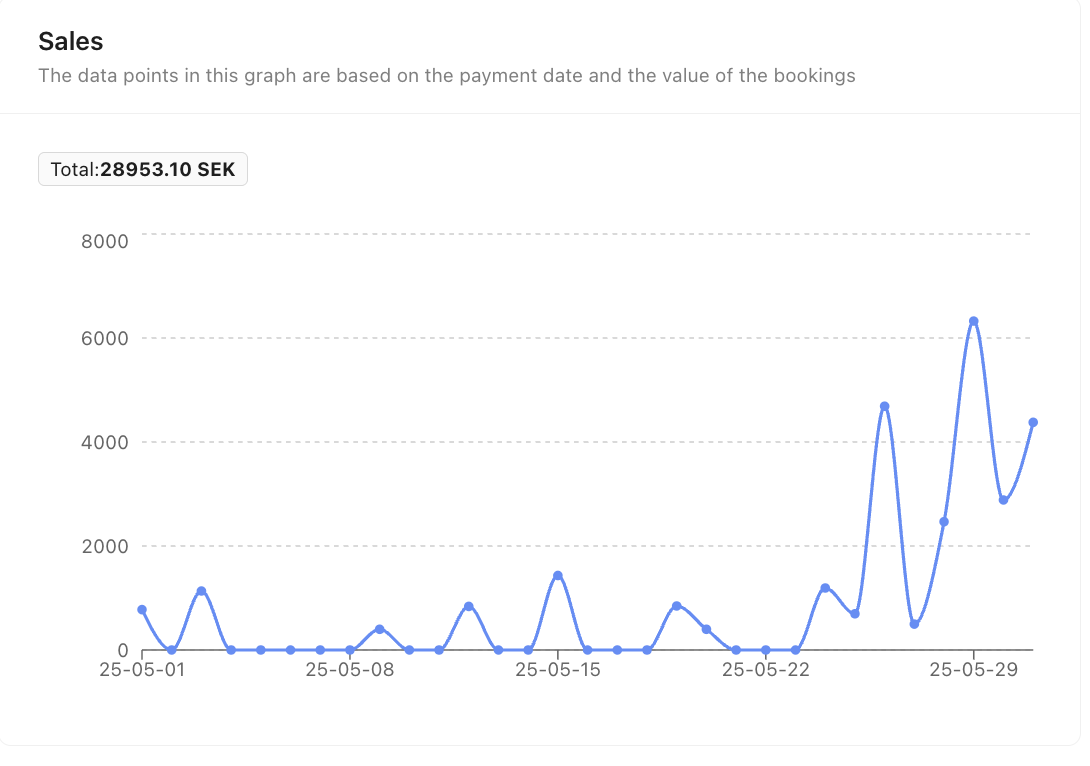
Total revenue for selected period
Note: Amounts are shown after discount codes are applied
Bookings with 100% discount codes won’t appear here
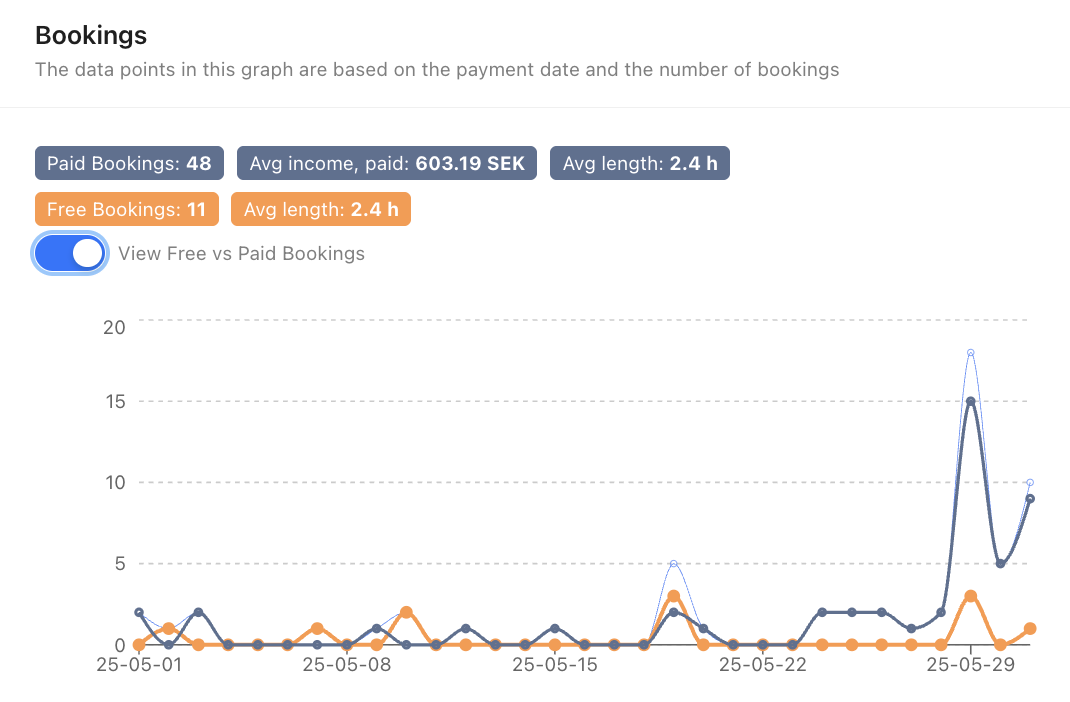
Number of bookings within your chosen timeframe
Includes both past and future bookings
Shows totals, averages per booking, and duration
Note: Counts complete bookings, not individual kayaks/SUPs
💡 Tip: Analyze Your Booking Mix: Use the interactive slider to compare free and paid bookings. This helps you understand your revenue streams and discount code usage
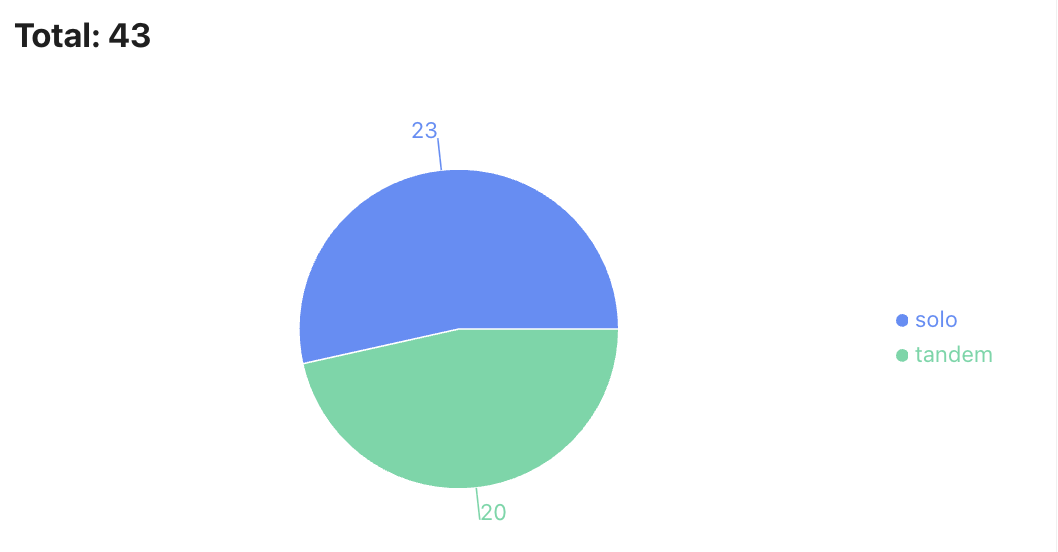
How many times each product type has been booked
Shows popularity of singles, doubles, SUPs etc.
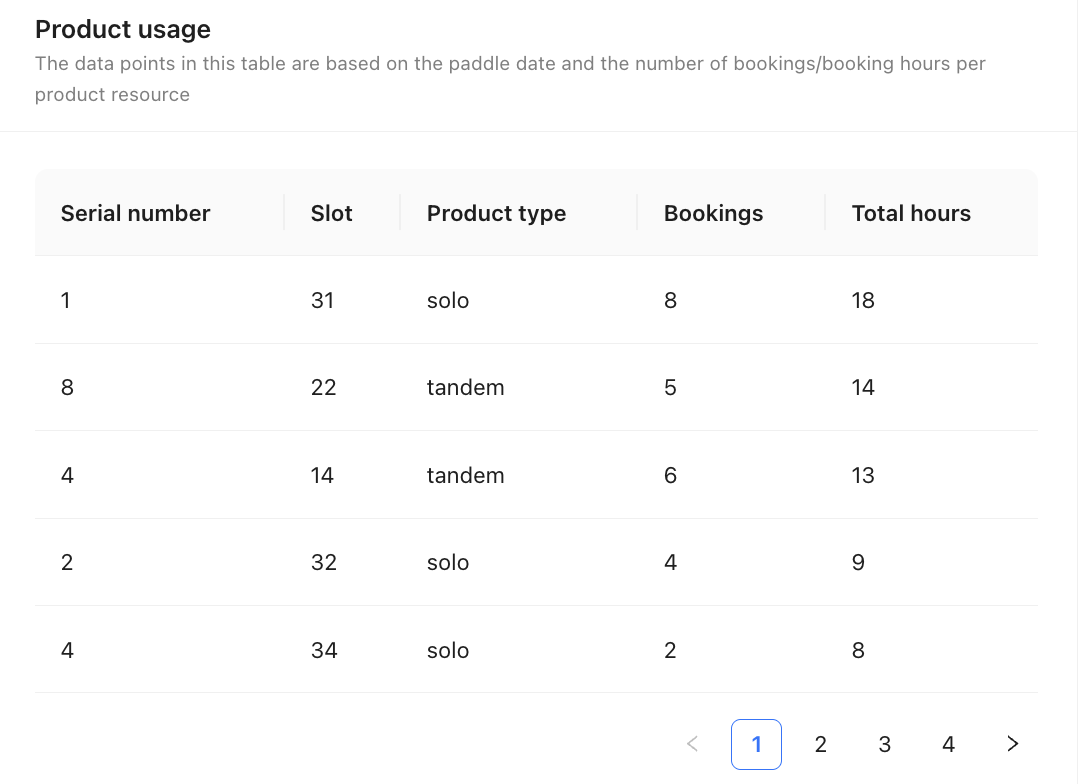
Track usage per individual kayak/SUP by serial number
See number of rentals and total hours used
Perfect for maintenance planning and resale value
Manage Individual Bookings
Understand your Booking statuses and how to filter your bookings.
📋 All confirmed and completed bookings
Active, upcoming, and past reservations
Search and filter through all finalized orders
Your main overview of actual customer bookings
❌ All cancelled reservations
View refunded or abandoned bookings
Useful for tracking cancellation patterns and reasons
🔄 Active booking sessions
Customers are currently on your website selecting products
Have started the booking process but haven’t completed payment
Will move to “Bookings” once payment is finalized

Search & Filter Functions
Find Bookings Quickly
Use the search and filter options to locate specific bookings:
🔍 Search by:
Booking number
Customer name
Email address
📅 Filter by:
Date range (From/To)
Specific station
Product type
Time slot
💡 Tip: Combine filters to narrow down results – for example, find all kayak bookings for a specific date at your station.
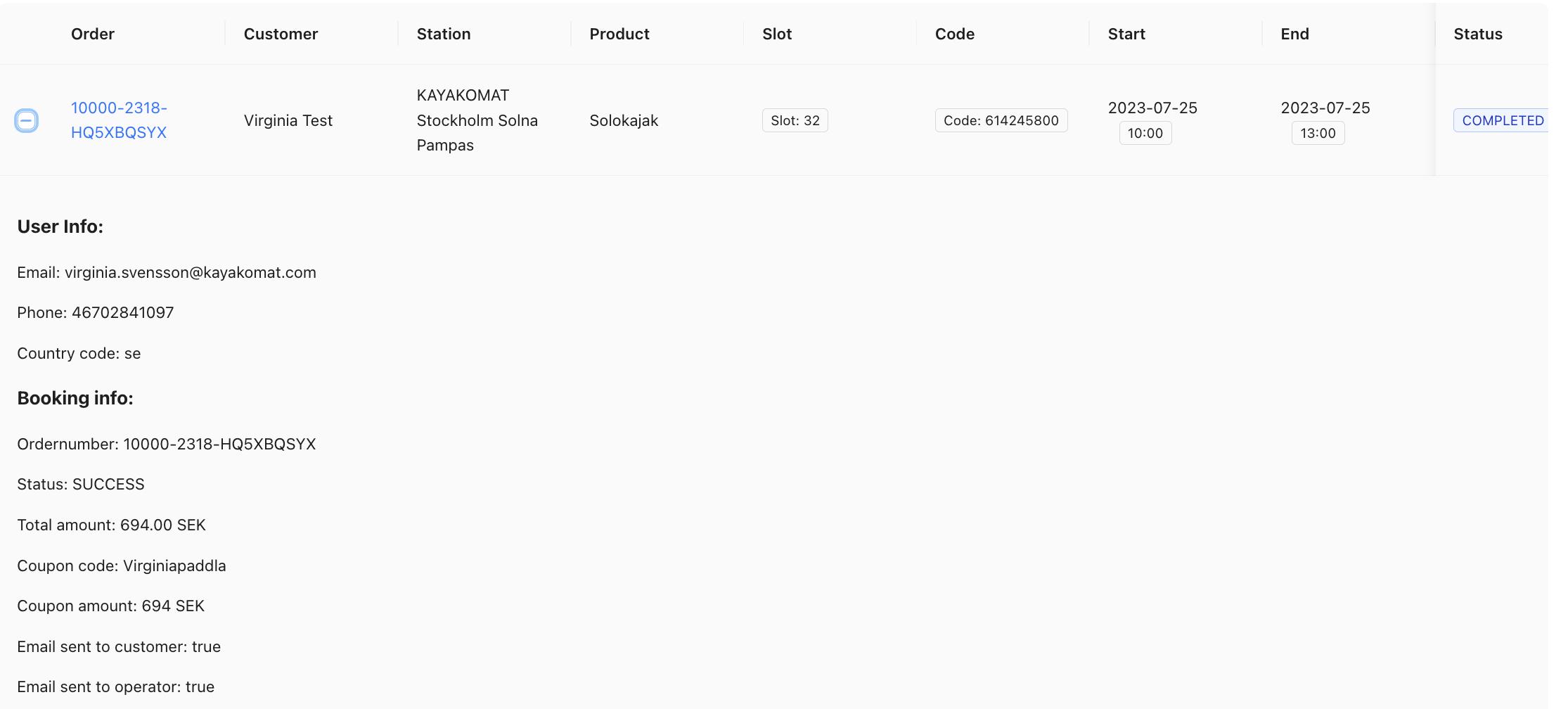
The overall view of your bookings:
View all booking details, customer information, and products
Click on the + to see more information such as if a discount code has been used, the total amount for the whole booking etc.
Click on the booking number to adjust the booking.
How to Modify Existing Bookings
Reschedule a booking to a different time slot. Perfect when customers need to adjust their plans.
*Please note: The new time slot must be the same duration as the original booking. If you booked 3 hours, you can only reschedule to another 3-hour slot.
For emergencies only: When a customer is late and affects subsequent bookings
All products on the booking are extended simultaneously
For pre-extension requests: Cancel booking → Create voucher → Customer rebooks with longer time
Before you cancel a booking:
Always suggest rebooking or voucher first.
No automatic refunds are issued by the system.
For refund requests – you must contact support directly.
Edit customer details and contact information. Eg. if a customer put in the wrong email, they won’t receive the booking confirmation.
Use when: A lock is broken, equipment is missing, or kayak needs maintenance
Before booking starts: Customer receives new code immediately
After booking starts: New code sent within minutes via SMS/email
Note: Original codes remain active if already generated
If the customer request a receipt, you can resend the booking confirmation, as this includes all necessary information.
See payment details, refunds, and additional charges. Only our Support can create refunds or after charges.
Station Management
Navigating Your Station Settings
When you click “Stations” in the left menu, you’ll see an overview of all your stations showing:
Station name and ID number
Active status on the website
Booking availability
- Three Management Options (right side). Below, you will find more information about each option.
Edit Station
⚙️ Station Settings
- Edit station description text for your booking page
Important: Update both Swedish and English versions
🏷️ Opening Tags
Add your station’s opening date (month/year)
Visible on your station website
Remember to remove after opening
🕒 Availability & Opening Hours
Set custom opening hours (default: 24/7)
Close for specific periods or weekends
Temporary closures or seasonal hours
Example:
Close Aug 20-24: Set “To” date to Aug 19, add new row and set “From” Aug 25 until your end of season date.
📝 Customer Information
Add important details to booking confirmations:
Location instructions (“Launch from the jetty on the left hand side”)
Safety information (“Military area – no paddling west”)
Local rules and guidelines
Keep your contact details updated here, they’re visible to customers on the website and used for communication.
Note: The section at the bottom is exclusively for receipt information.
Each month, your full financial report is available in the Admin App (new from 2026). Make it a habit to review, download, and save it for your bookkeeping.
Read more here.
Edit products
This section shows all your products.
Click “Edit resource” to:
View how many of each product
Add serial numbers
Track your registered equipment
Click “Edit slots” to:
Deactivate a slot when a lock is broken or equipment is missing.
Update Lock-ID after replacing a lock
Change position for your kayaks/SUPs
Collecting Customer Feedback
After each rental, customers receive a thank-you email with the option to leave a review either on Google or directly in our system.
Review Overview
See your average ratings in three key areas:
Overall Experience
Convenience
Cleaning
Managing Feedback
Read comments: Click the + sign to view full customer comments
Regular monitoring: Check reviews frequently to celebrate positives and address concerns
Respond to customers: Find contact details in their original booking if you need to follow up
Create and Manage Discounts and Gift Cards
You have two separate sections:
🎫 Discount Codes
Create promotional codes for discounts
Set up seasonal campaigns and special offers
🎁 Vouchers/Gift Cards
Create and manage digital gift cards
Track voucher usage and balances
Read more on this page on creating promotions.
It is very important that you register your equipment for insurance purposes, but also to keep track of how much each kayak/SUP has been used when it is time to sell it.
Read more on this page on how to register your equipment.
